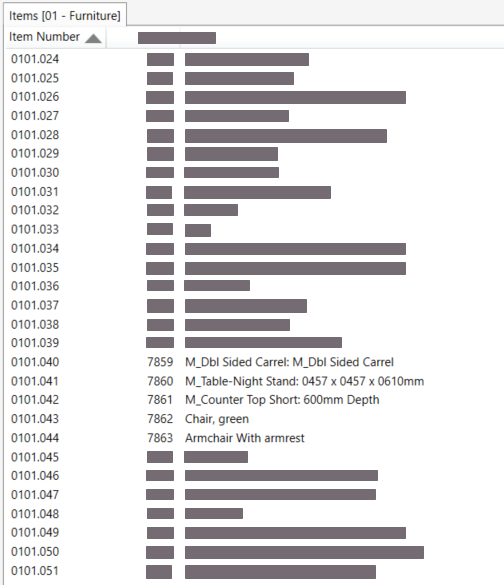
.png)
It is possible to edit and bulk update Item Number values to suit requirements.
Edit serial number manually
To change the numeric value of an Item Number:
-
Select Change Serial from the dRofus Ribbon Menu and a window will appear:
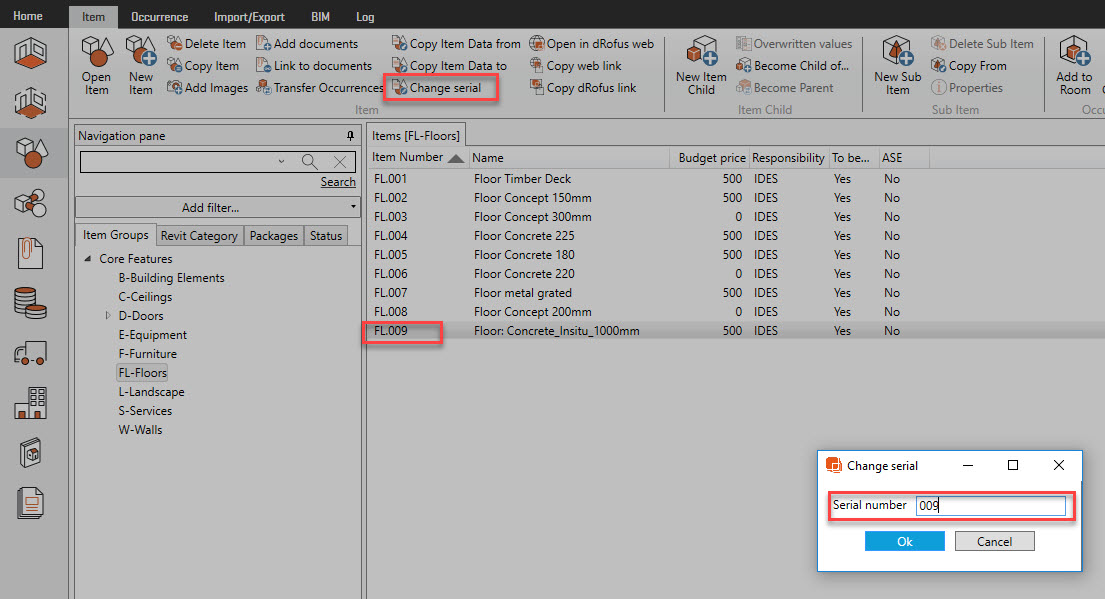
2. Enter the new value, that is not already in use within the Item Group
Consolidating Item Numbers
When several Items have been deleted from the Project it can leave a gap in the Item numbering sequences.
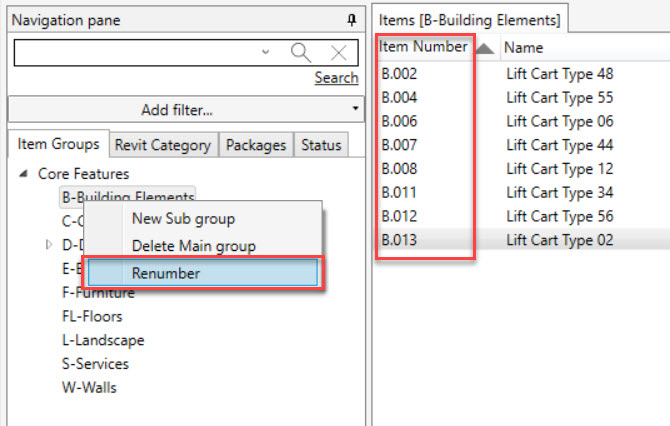
To consolidate and order the numbering on the Items remaining:
-
Select the Item Group
-
Right click
-
Select “Renumber”. Only available from the lowest level of the relevant Item Group in the Item Group hierarchy:
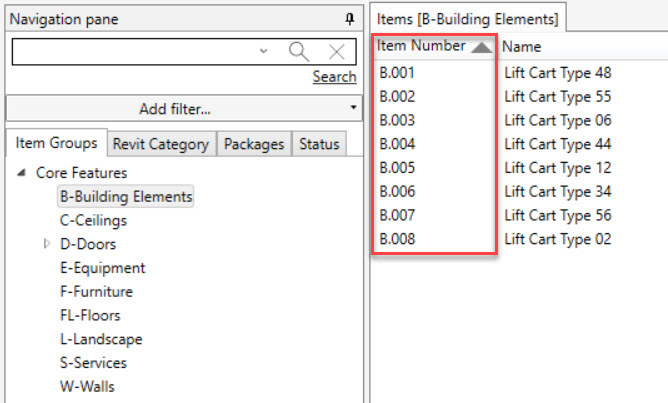
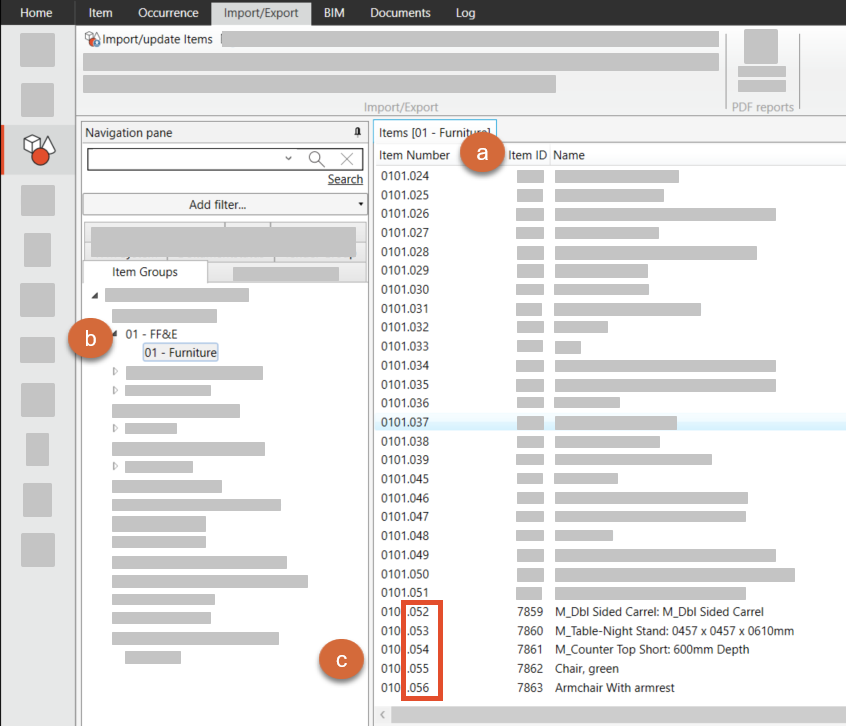
The Item Numbers are regenerated to be sequential and without gaps:
Edit serial number: Excel import
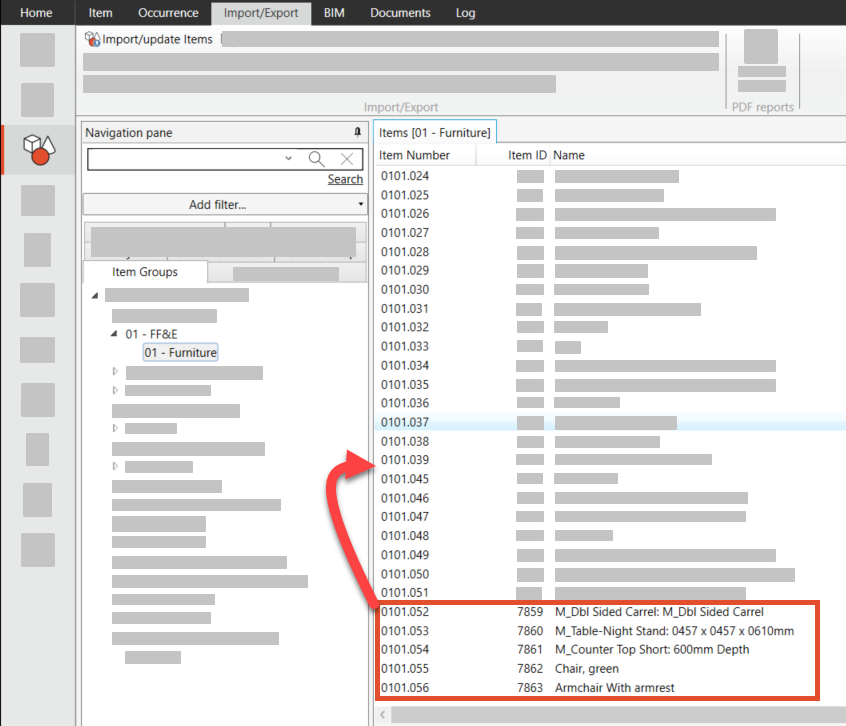
How to fil gaps in the serialnumber.
-
Number: Find out which numbers you want to use.
2. Make Excel-fil: Create or Export out exel-fil that contains:
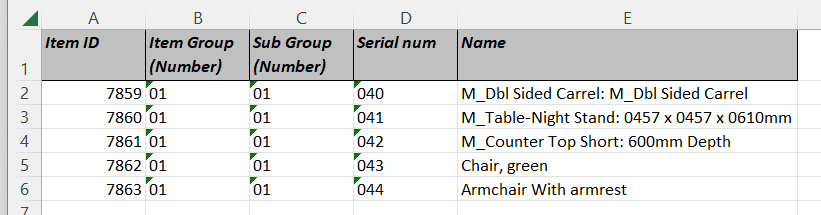
A: Item ID
B and C: Item Group number and Sub Group number. You need to export out all levels. In this example we use 2 level.
D : Serial Number
E: Item Name
3. Update serial number in the Excel-fil
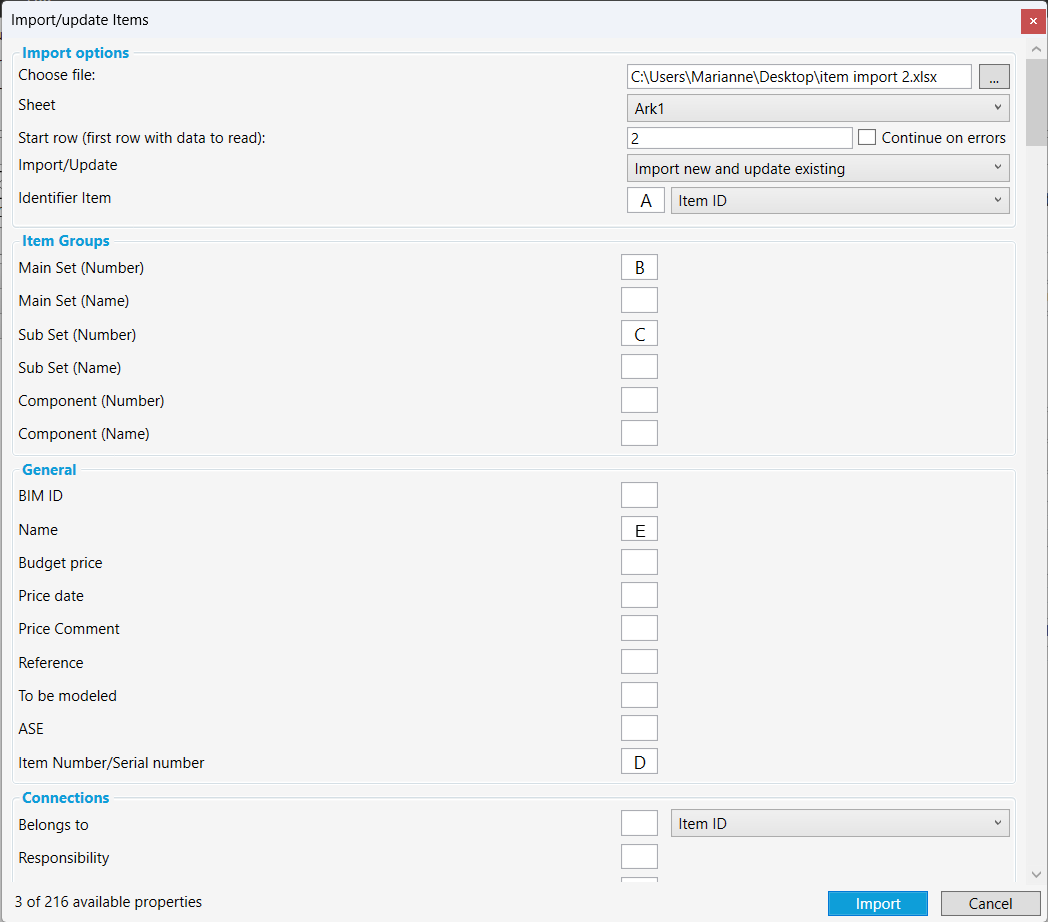
4. Import Excelfil:
Updating already existing Items with new number you need to fill out:
-
Identifier Item
-
Item Number / Serial number
Creating new Item you need to fill out:
-
Item Groups (all levels)
-
Name
-
Serial Number
4. Click “Import”
5. Click “Ok”
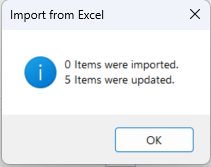
6. Serial number updated: You will see that the gap is filled