.png)
Access
Access to Collector is currently not supported via tha Account app. For the first release we rely on admins to share and distribute URLs to customers that needs access. The URLs can be found in the Manager app or send a link with following syntax (same for all servers): https://reqhub-[server]/[database]/[project_id]/collector/
Example, for the AWS nordic server, the URL will be https://reqhub-no.drofus.com/[database]/01/collector/ .When [database] is replaced with the name of the database it will look like https://reqhub-no.drofus.com/reqhub-testing-en/01/collector/
On public servers:
|
Server |
URL |
|---|---|
|
Nordics |
https://reqhub-no.drofus.com/[database_name]/[project_id]/collector/ |
|
EU |
https://reqhub-eu.drofus.com/[database_name]/[project_id]/collector/ |
|
US |
https://reqhub-us.drofus.com/[database_name]/[project_id]/collector/ |
|
AU |
https://reqhub-au.drofus.com/[database_name]/[project_id]/collector/ |
|
CA |
https://reqhub-ca.drofus.com/[database_name]/[project_id]/collector/ |
|
JP |
https://reqhub-jp.drofus.com/[database_name]/[project_id]/collector/ |
|
UK |
https://reqhub-uk.drofus.com/[database_name]/[project_id]/collector/ |
Landing page
When entering the Collector via one of the above URLs you will see the users' landing page with all Requirement sets assigned to that user.
Note that the term ‘Requirement set’ is replaced with ‘Task’ for the users of collector
The Tasks is grouped by Responsibility groups. Each task will have a progress bar that indicates level of completeness and you can toggle away completed tasks by using the “Show only incomplete” option in the upper right corner of your landing page.
Collector also have a aggregated progress bar in top of the page, showing how many task are completed.
Working with occurrence task
An occurrence task can be recognized by their progress bar where it says x/xx Occurrences:

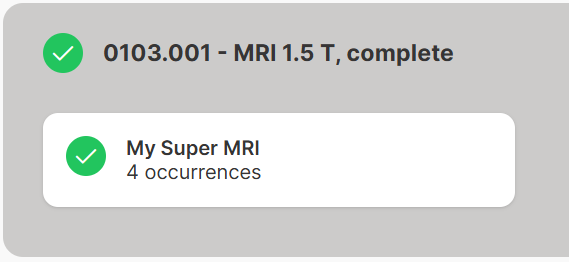
To enter the task, simply click on it and you will be sent to the list of occurrences. To complete an occurrence task, all occurrences needs to have the required information defined in the requirement set by the admin. Click on one of the occurrences to see what the required data is. This might be properties, documents or one of the two. When a property is filled out or a documents is uploaded you will see a green checkbox indicating the field/document is completed.
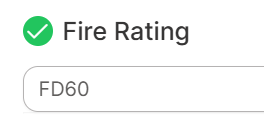
When all properties and/or documents for an occurrence is completed, the occurrence itself is completed which will be indicated by a green checkbox.
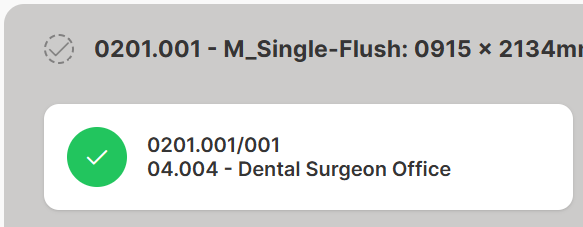
Each completed occurrence will update the aggregated task progress bar;

You can multiple select occurrences by clicking the circular icon within each occurrence card. To enter multiple edit mode, select ‘Edit’ in the bottom menu.

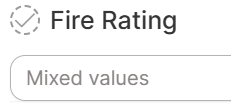
In multiple select mode, if two or more occurrences has equal value, the value will be shown. If two or more occurrences has different values the property will show ‘Mixed values’.
Working with product task
An product task can be recognized by their progress bar where it says x/xx Items:

To enter the task, simply click on it and you will be sent to the list of items. To complete a product task, all occurrences needs to be assigned to a product, and the product need to have the required information defined in the requirement set by the admin. In a product task, occurrences are grouped and the first thing you need to do is to assign the occurrences to a product.
Click Assign Product. In the next window you have two options. Either assign the occurrences to a new product (Create new product) or assign them to an existing product, if such exist. When creating new product you will only see the properties and documents defined by the Requirement set. You don’t have to fill out all data upon creation, however, Name and Number are mandatory.
Once the product are created/assigned you will see the product card in the task details.
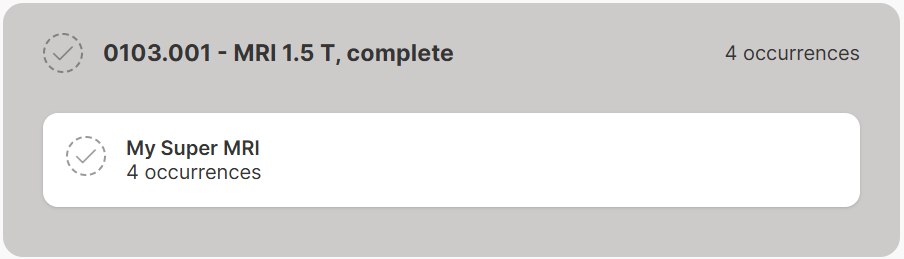
Once all occurrences are assigned a product, and all required data is filled out for the product, the Item will be completed - indicated by a green arrow.