.png)
You can set and update the system membership for existing and new occurrences using Excel. This makes it easier to link large numbers of occurrences to existing systems and keep system assignments in sync with design changes.
Note: This feature updates the relationship between occurrences and existing systems. Systems must already exist in the project before you can import/update occurrence system membership.
You can either:
-
Export an Excel file from dRofus to use as a starting point, or
-
Create a new Excel file that includes the required columns.
To access the import/update command open the Items module → Go to the Import/Export tab in the ribbon → Select Import/Update Occurrences.
For further details about importing and updating occurrences without system membership please refer to Import and update of Occurrences from MS-Excel
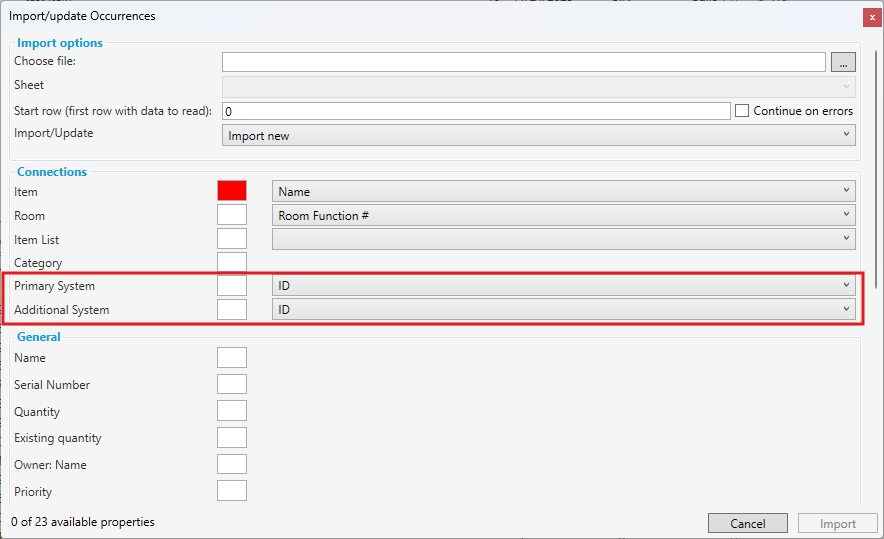
Import/Update occurrences with system memberships
In order to include system memberships when updating or importing occurrences the Excel file must contain information about existing systems already established in dRofus. You can either use System ID or System numbers to uniquely identify which systems that should be associated to the occurrences in Excel.
Example : Update occurrences with system membership
The minimum requirements information in Excel is:
-
Identifier for the occurrences (ID, Number or IFCGuids)
-
Identifier for the systems (ID or number)
Then additional connections can be added such as room and item list relations as well as occurrence properties and occurrence data.
Primary and additional system
When updating system membership you can update both Primary system and additional system memberships. Primary System is the system the component naturally belongs and gets get it’s numbers from. Additional system is all other system memberships the component may have.
Example: A VAV unit may have the HVAC system Ventilation system – supply air as its primary system. But it may also be member of an electrical system and/or a signal system, thus having additional system memberships.
Import vs update options
As with other import/update operations, you can choose to:
-
Update existing occurrences only
-
Import new occurrences only
-
Import and update in one operation
Note: System membership is only updated for rows where:
An existing occurrence can be identified, and
A valid system identifier value is provided.
How system membership is updated
When you run the import, dRofus will:
-
Identify the occurrence based on your chosen identifier(s).
-
Resolve the system using the system columns in the row.
-
Update the occurrence’s system membership according to the following rules:
-
Valid system identifier
-
If the value(s) in the system column(s) match a single existing system, the occurrence is linked to that system.
-
-
Empty system value
-
If the system columns are left empty for an existing occurrence, the current system membership is left unchanged.
-
-
Unknown system
-
If no system can be found that matches the provided value(s), the row is flagged with an error for system membership and the occurrence’s system link is not changed.
-
Other occurrence fields included in the import (e.g. quantities or comments) will be updated according to the standard rules for Import/Update Occurrences.