
Use Do not update room relationship when you want to synchronize occurrences without changing their room connections in dRofus.
For example, your project may have agreed room assignments that should remain unchanged while you continue synchronizing other occurrence data from Revit.
Before you start
-
Open your Revit model and connect to the correct dRofus project.
-
Make sure the required attribute configurations are active and the relevant Revit Family Types are linked to dRofus Items.
-
Decide whether room connections should follow changes in Revit or remain unchanged in dRofus.
The Do not update Room connection setting is available in Options from the following synchronization dialogues:
-
Sync selected instances
-
Sync current view
-
Import as System Component
-
Items ↔ Families, when synchronizing occurrences
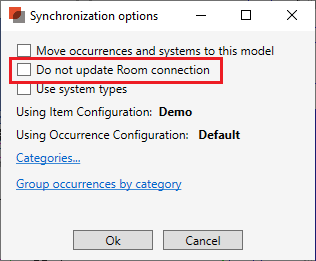
The setting can also be included inModel Options.
Keep room connections unchanged
-
Open the synchronization dialog for the instances or items you want to synchronize.
-
Select Do not update room relationship.
-
Review the other synchronization settings and continue with your usual synchronization workflow.
-
After synchronization, check the affected occurrences in dRofus.
Result: Synchronization does not assign a room to an unconnected occurrence or change an existing room connection.
Important: This option also prevents room-to-room changes. If an instance moves to another room in Revit, its occurrence does not automatically move to that room in dRofus while the option is selected.
How the option affects room connections
Do not update room relationship controls whether synchronization changes an occurrence’s room connection in dRofus. It does not change the instance’s placement in Revit.
When the option is selected
The room connection in dRofus stays unchanged:
-
An occurrence connected to a room stays connected to that room, even if its Revit instance is in a different room.
-
An occurrence without a room connection stays unconnected, even if its Revit instance is in a room.
Use this setting when room assignments should be maintained in dRofus rather than updated from Revit.
When the option is not selected
Synchronization uses the room found for the instance in Revit:
-
If a room is found, synchronization assigns or updates the occurrence’s room connection in dRofus.
-
If no room is found, an existing room connection in dRofus is retained.
Examples
The following examples apply to occurrences that do not represent grouped instances in multiple rooms.
|
Room connection in dRofus before synchronization |
Room found for the instance in Revit |
Result in dRofus: option selected |
Result in dRofus: option not selected |
|---|---|---|---|
|
Room 101 |
Room 102 |
Keeps Room 101 |
Changes to Room 102 |
|
Room 101 |
No room found |
Keeps Room 101 |
Keeps Room 101 |
|
No room connection |
Room 102 |
Remains unconnected |
Connects to Room 102 |
Example: An equipment occurrence is connected to Room 101 in dRofus, but its instance has been moved to Room 102 in Revit.
-
To keep the agreed assignment to Room 101, select Do not update room relationship.
-
To update the assignment to Room 102, clear Do not update room relationship before synchronizing.
Grouped instances: If one occurrence represents instances in different rooms, different rules may apply. Do not use the examples above to predict the result for grouped instances.
Notes and limitations
-
Grouped instances need additional care. When one occurrence represents instances in different rooms, synchronization may clear its room connection because there is no single room that represents the whole group. Do not assume that the room-connection option protects every grouping scenario.
-
Preserving a room connection does not correct the Revit model. If a room cannot be found unexpectedly, investigate the room or space assignment in Revit.